
Paper logbook import · Apple Intelligence
From paper to your Heligraph logbook.
Your flying history doesn’t need to start from scratch. Photograph a logbook page, let Apple Intelligence read the entries, then check and save them in Heligraph.
You stay in control: nothing is saved until you have checked the page and confirmed the import.
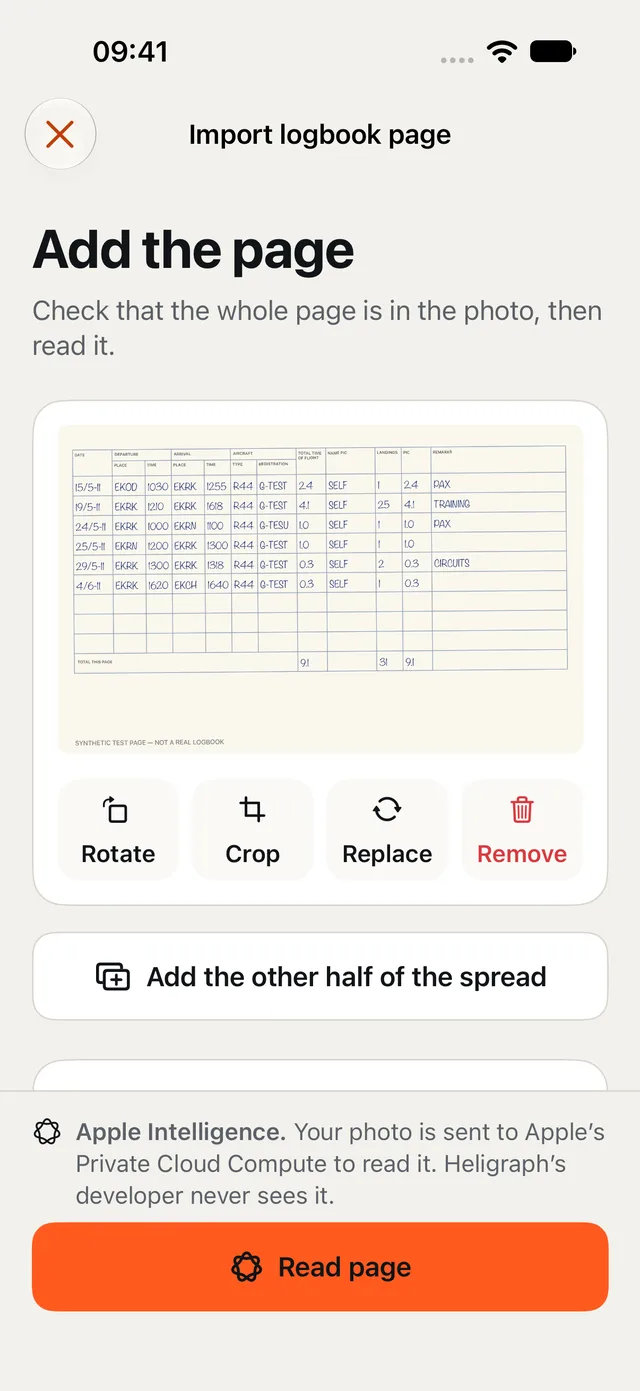
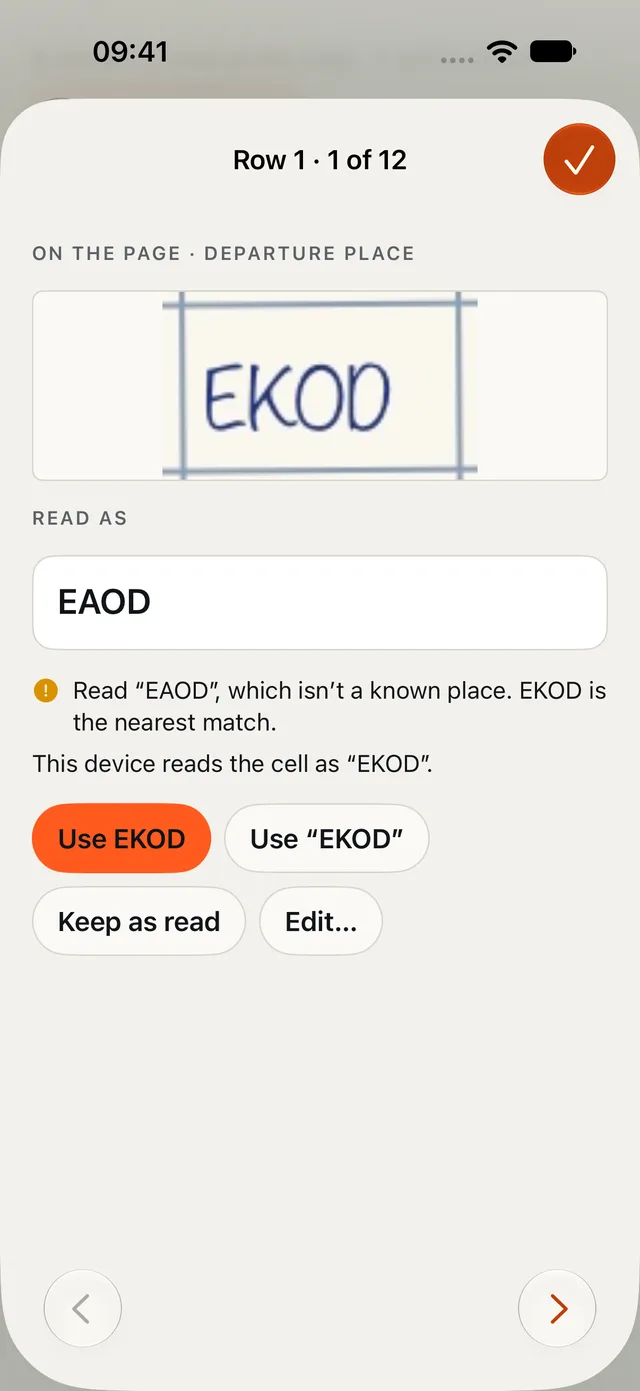
Example screens with sample entries. Select a screenshot to enlarge.
A page at a time. Checked by you.
In Heligraph, open Settings → Import → Import logbook page photo.
Photograph the complete page
Take a photo, or choose one from Photos or Files. Include every entry, the column headings and the printed totals. For a two-page spread, use one photo of the whole spread or one photo of each facing page.
Check the page is upright and fully in view. You can rotate it or adjust its corners before reading it.
Let Apple Intelligence read it, then check
Tap Read page. Heligraph sends the photo to Apple’s Private Cloud Compute, where Apple Intelligence reads the table and returns the entries for you to review.
Compare every row with your paper logbook. Correct unclear handwriting, check the first and last entries, and count the entries yourself to make sure the whole page is there. If anything is cut off or unreadable, take a clearer photo or type it in yourself.
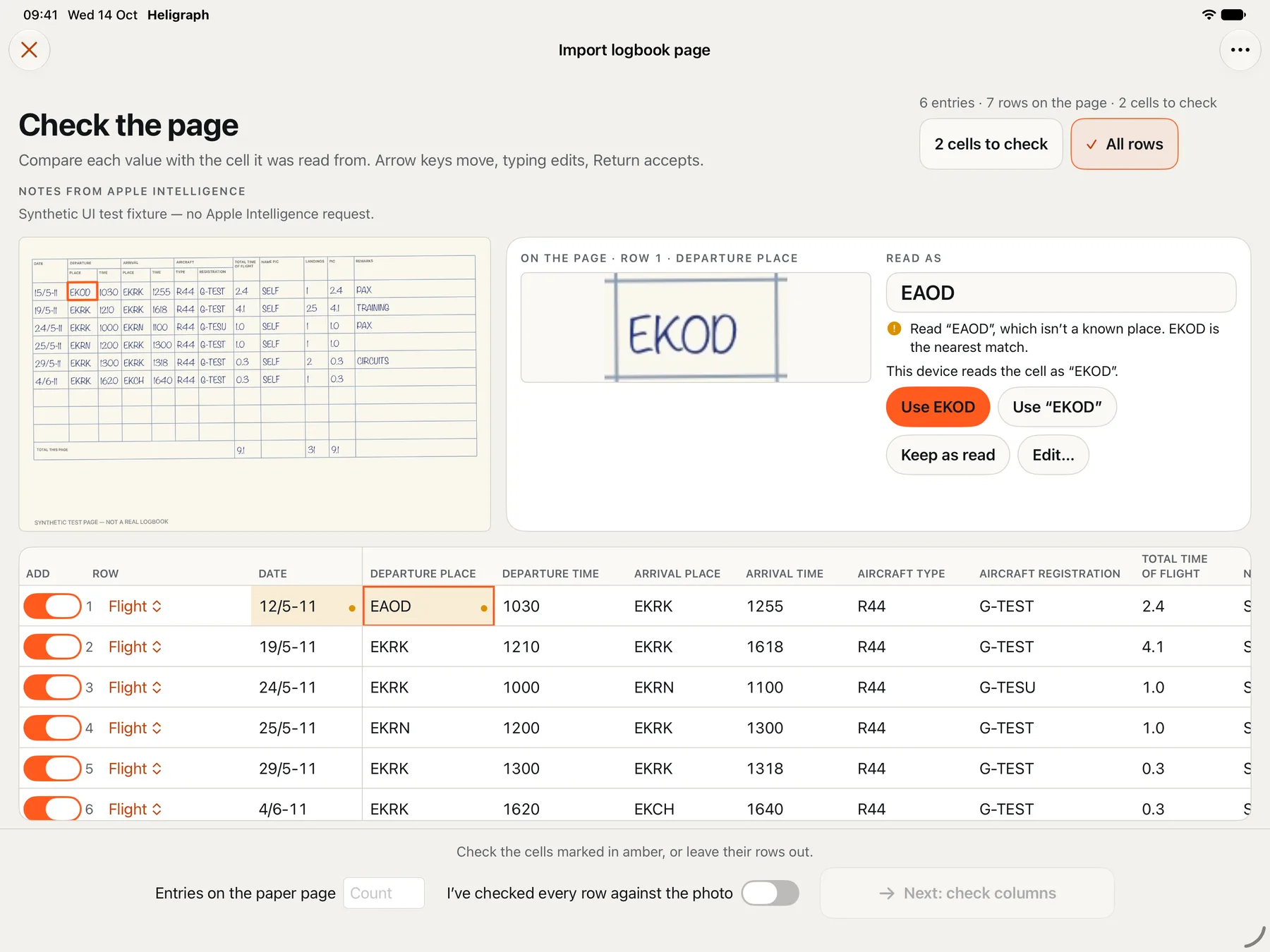
Amber cells show what needs checking.Compare each flagged value with its place on the handwritten page. Confirm the columns and review the flights
Check what each column holds, how dates are written and whether durations use hours and minutes or decimal hours. Heligraph suggests settings from the checked page; you confirm them.
Review the flights and the totals before saving. Resolve any warnings, edit an entry if needed, and check possible duplicates against flights already in your logbook. Printed totals and headings are kept separate from flight entries.
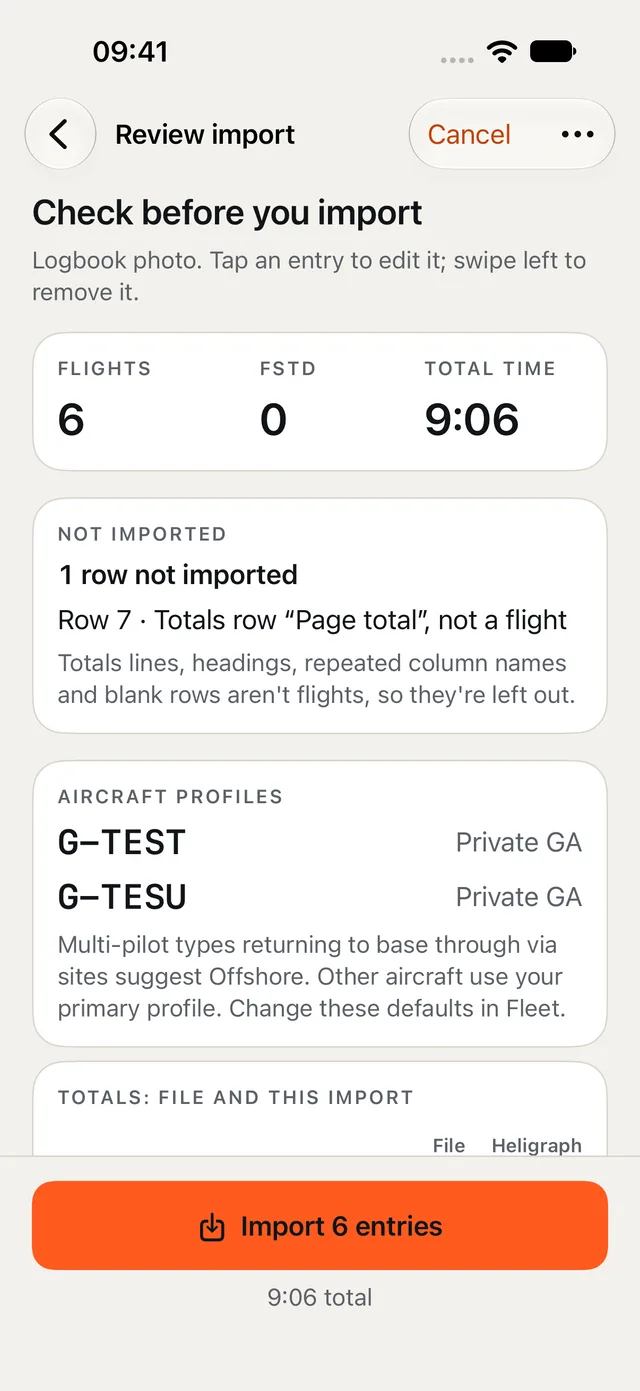
Review before saving.Check the flights, totals and aircraft before confirming the import. Save the page together
Confirm the import to save your checked flights in one batch. Heligraph shows how many entries were added and their total time. You can then import the next page.
Changed your mind? Open Settings → Import history to review the batch and undo the whole import.
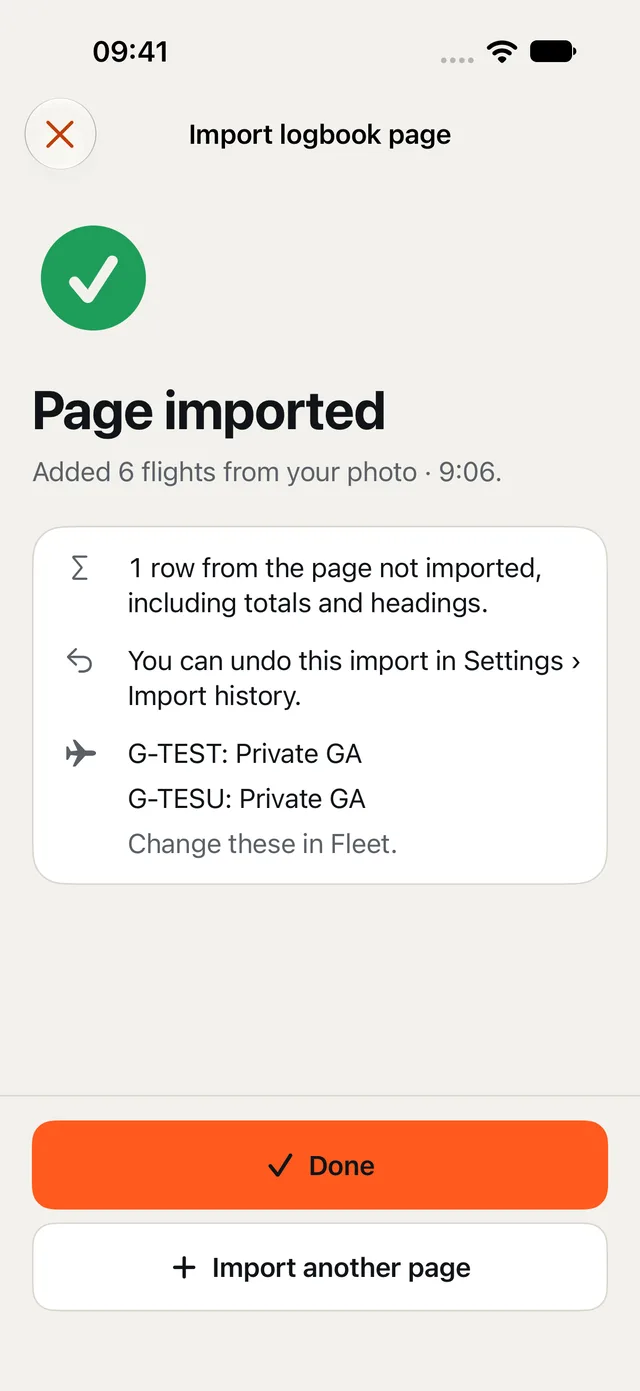
Your checked flights, saved.One page becomes one undoable import.
Give the writing a clear view.
- Lay the logbook flat in even light. Avoid glare and shadows across the writing.
- Keep all four edges in the picture, with the headings and totals visible.
- Photograph one complete page or spread at a time. Two photos should show the facing halves of the same entries.
- Check every entry even when the totals match. Matching totals alone don’t prove that every entry was read correctly.
- Keep your paper logbook. Signatures and certification statements aren’t imported as signatures.
Read by Apple. Checked by you.
Your selected photo is sent to Apple’s Private Cloud Compute when you choose to read the page. Heligraph’s developer never sees your photo or its contents.
Apple says data processed by Private Cloud Compute is used only to answer your request, is not stored and is not accessible to Apple. Read Apple’s privacy explanation, or see Heligraph’s privacy policy.
A photo you display beside Fast entry while typing stays on your device. It is sent for reading only when you choose the Apple Intelligence import.
Bring your flying history with you.
Photo reading needs an internet connection and Apple Intelligence available on your iPhone or iPad. If it isn’t ready, or you reach Apple’s reading allowance, Heligraph explains what to do and lets you type the page in yourself.
You can also use Fast entry on iPad to type a page with its photo beside you, or import an existing logbook file.